Pages

Friday, August 1, 2014

How to root Nokia X and get access to Google Play Store

The Nokia X is based on the Android Open Source Project (AOSP), and is powered by Microsoft andNokia services. Nokia has used the AOSP version corresponding to Android 4.1 Jelly Bean as the baseline for its operating system. The highlight of the Nokia X is the highly customised version of Android, with Metro-inspired UI and access to Nokia's own app store. While there's no access to Google's Play Store, Nokia is offering side-loading of Android apps from any third-party source: 1mobile market, SlideME market, Aptoide, and Yandex Store.
However, it is possible to install the Google Play store on the Nokia X through rooting. This means giving the user root permission on the phone. By rooting a device you can run apps that require access to certain system settings, and the ability to flash custom ROMs to the phone, which can actually add extra features. Before starting, note that unlocking the bootloader or rooting process voids the warranty of your device. And more importantly, the rooting process might brick the device if you make any mistakes, so be careful when following these steps.
Method 1
Rooting the Nokia X:
In order to run Google apps, you will be required to root your Nokia X with the following steps-
nokia_x_debugging.jpg
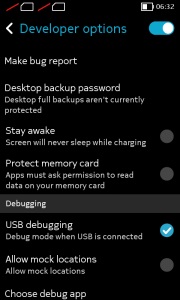
-Users will be required to enable USB debugging on the Nokia X that can be found in Settings' Developer option. You will have to tick the USB debugging box to successfully perform the rooting process.
To start, you will have to enable USB debugging. To do this, first go to your phone's Settings > Developer and tick the USB debugging box.
-Next users have to download the frameroot.apk to the Nokia X or to a Windows PC (transfer it to the Nokia X). Use the automatic setup to install the root tool on the Nokia X phone.
To start, go to the Farmaroot.apk folder in your Nokia X > Click the .APK file and it will start the automatic installation of the app on to the phone, follow the instructions.
(If a file is transferred from PC to the Nokia X, users can search for the required file on the phone via the ASTRO File Manager, which comes pre-installed on the device.)
nokia_x_framaroot_app_success.jpg
Once, the Farmaroot has installed on your Nokia X, choose the app icon in app drawer to install SuperSU. To install, open the SuperSU file and choose the Gandalf exploit, which is a dropdown option in the Farmaroot app.
When the installation is complete, there will be a success pop-up message on the screen. Now you just need to reboot your Nokia X for successful completion of the rooting process.
- The Farmaroot app on the Nokia X also gives an option to unroot the device, if you want to bring it back to normal.
Installing the Google Play store on the Nokia X:
Download the Google services APKs from here on your Nokia X or a Windows PC and copy the APKs to the phone using a USB cable.
To start, go to this link install the Google services APKs to your phone or Windows PC. Transfer all the Google APKs to Nokia X using a USB cable.
-Now, you will be required to extract all the Google APKs. To do this, first download a root explorer.apk app on your Nokia X, which is a file manager for root users. 
nokia_x_google_apk_extract.jpg
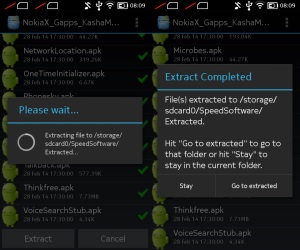
Go to the folder where you saved the Google APKs and select all the files; next from the menu choose the option Extract all. The extracted APK files will be automatically stored on to microSD card's SpeedSoftware folder. At this stage, do not install the APKs.
-The extracted files then must be moved on to /system/apps folder of the Nokia X. (Use the root explorer app, and go to the SpeedSoftware folder on the microSD card. Select the files, and from the menu, choose Cut. Then, go to the /system/apps/ folder, and choose Paste from the menu.)
-Next, you will have to change the permission of all the extracted files in the /system/apps folder by selecting all the files that were extracted (Google APKs) and opening the Permission option in the menu for the all the apps. The Owner, Group and Other options should have Read Only checked in the popup that comes when you press Permission. Only Owner should have the Write option checked. Reboot your Nokia X once the permission has been changed for all the extracted Google APK files to make the device more stable.
nokia_x_play_store_app_menu.jpg
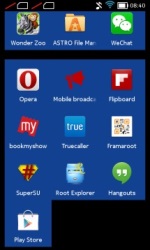
-Now you will find the Google app icons for Hangouts, Gmail, and Google Play Store among others in the app drawer. 
Enjoy, you have successfully installed the Google Play store and other Google services on your Nokia X. Now sign-in to your Google account to access Google services on your Nokia X and you can explore your favourite Android apps directly from the Play Store.
This method works with the earlier version of the Nokia X software, but once you move to version 11.1.1, new security features don't permit this technique. There's a new method that can help if you've updated your phone though.
Method 2-
In case the above method does not work because of new security restrictions, here's what you can do:
-Install the nokia composite ADB interface on your Windows PC, in addition to installing the frame root.apk on your Nokia X (following the steps detailed above). 
superuser_request_nokia_x.jpg
The Nokia composite ADB interface folder installed on your PC should have two sub folders for KingoRoot_NokiaX_Mod and Nokia X USB drivers.
-Plug your Nokia X to the Windows PC with a USB cable, open the device manager and right click on the connected device. This gives the Update Driver option on your Windows PC, to install the ADB drivers.
You might be prompted to enter new drivers for your Nokia X, which can be found the Nokia composite ADB interface folder - Nokia X USB drivers. Just choose browse, go to the folder and select the driver.
-Now you need to open the KingoRoot.exe file on your Windows PC, which can be found in the Nokia composite ADB interface folder. Please note that you need to keep your Nokia X connected to the Windows PC during the complete process.
kingoroot_app_screenshot.jpg
-Once you have started the KingoRoot app on the PC, it will appear on your Windows PC screen giving you an option to root the connected device. When the phone is not rooted, KingoRoot on the PC shows the status of the connected device as Not Rooted.
-Now users need to choose the Root button in the KingoRoot app on your PC to root the device. This will also install the SuperSU app on the connected Nokia X device automatically. This will take few minutes.
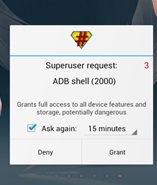
-Reboot the phone after the connected device (Nokia X) status in KingoRoot app shows Rooted on your PC. After the reboot, open the SuperSU app on the Nokia X, this will for the ask grant option on the app. Press grant and move ahead.
-After pressing grant, open KingoRoot on your PC again. This time the KingoRoot shows two options - Root again or Remove Root. To return your phone to normal, you can click on Remove Root.
-Now you can repeat the method of installing the Google Play store on the Nokia X (check Method 1) by extracting all the Google APKs using the root explorer.
nokia_x_google_search.jpg
*Note- my recommendation would be to install Google Play Store and other services on your Nokia X when it is running version 10.0.3, rather than updating the phone to software version 11.1.1. This is because the new method requires the KingoRoot app on your PC and the steps are a bit complicated when compared to the Framaroot app that worked well enough for us on our Nokia X.

Monday, March 31, 2014

How to Root Xperia M C1904/C1905 And Update Android 4.3 15.4.A.0.23 Official Firmware

Sony Xperia M has been officially updated to Android 4.3 Jelly Bean  days ago. One day after the launch of this update, a XDA member has come up with a simple method to root this firmware. Currently it is the only know working method and it requires a phone with unlocked bootloader. If the bootloader of your smartphone is still locked, then you may have to wait for a new rooting method, that does not require bootloader to be unlocked. Also, a CWM ot TWRP recovery made for locked bootloader can be used to root Xperia M official firmware. However, currently there is none available for 4.3 firmware yet.


This method requires that you must be using Xperia M C1905, which has been updated to Android 4,3 Jelly Bean, with build number 15.4.A.0.23. If you try it on another firmware or another phone, for some unknown reason, we cannot gaurantee its safety. Here is a quick glance at how this rooting method will work. This is the typical rooting method, often called as universal rooting method, in which you flash a SuperSU zip via a custom recovery like CWM or TWRP. This method can be applied to a large number of devices. Many other Xperia devices are rooted the same way.

Lets dive deeper into this method, to understand it completely. It is for those, who are new to rooting stuff and fear it. All first timers usually fear it. Rooting is, for me, an integral part of Android. If I don’t root my phone, I’ll feel like my phone isn’t equipped with all the required tools. A rooted phone is capable so much more than anyone can imagine. To be honest, there is no explanation to what a rooted phone is capable of. With right method and coding, one can add anything to the device and make it work. There are number of applications available in Play Store, which are for rooted phones. This assures many that rooting Android is not something harmful or illegal. It is basically a method of unlocking system locked files and modifying them at one’s own will. There are number of tweaks available, which greatly enhance the capabilities of a regular Android device. I hope it’s enough for people to understand why rooting Android is so important and why so many people want it.

This guides includes a kernel with CWM packed inside. You can enter CWM on Xperia M by hitting volume up and down keys while phone is booting up. Navigate in the CWM using volume keys. Some recoveries are modded to be used with touchscreen. That’s cool but still not available to all. The basic CWM recovery includes navigation using buttons only. As for TWRP custom recovery, it is totally designed for touchscreen devices. It is the latest custom recovery out there. However, CWM still dominates the Android world and it will not be easy to let it go for any other custom recovery.

Xperia M is a well designed smartphone. It can take on its competitors without a fail. It is a mid range device with Android 4.1 Jelly Bean out of the box. However, the Android 4.3 Jelly Bean update make things even better for this phone. The phone is more secure and more powerful than before. It is even more wise and saves more batter than before. The latest stamina mode allows users to get at least 2 days of average usage from this device, in one charge. Sony made sure that you enjoy all music and movies stored up on your device with latest media apps on board. This update includes latest Sony media apps, which ensure quality entertainment for users.


Enough with the explanations, lets move on to rooting Xperia M 4.3 15.4.A.0.23 firmware. If you are truly unlucky and have not received the update yet, then you can update your device manually as well. Here is a complete guide to update your Xperia M to Android 4.3 15.4.A.0.23 official firmware using ftf file. Ftf files are the full firmware files for Xperia devices.

How to update Xperia M C1905 to Android 4.3 15.4.A.0.23 Official Firmware

Flash Tool

Proof !!! 100% working


FOR ROOTING XPERIA M
This rooting method has been develpoed by haresh311999 from XDA. If you like his work and want to appreciate it, buy him a coffee!

Required Downloads:

KERNEL-4.3.img

UPDATE-SuperSU-v1.94.zip


Disclaimer:
Remember that all processes like rooting, flashing and manual updating are custom methods. They have no concern with Google or mobile manufacturer. Follow every step carefully to avoid any mishap. Owner of site will not be held responsible in case of any mishap. Do it at your own risk. Rooting and flashing custom ROMs will also void warranty.

Before starting rooting process, I want you to take few things into consideration. Make sure that you read every thing written in this requirements table. These are for the good of your device.

Requirements
1. ADB and Fastboot Drivers:
ADB stands for “Android Debug Bridge”. ADB is essential to establish a connection between you android device/android emulator and PC. If you are a developer, or an android device owner, who wants to mess with his android then you will need ADB & Fastboot installed on your PC. ADB and Fastboot drivers are essential to detect your device while it is connected to computer. Without these, you may find it difficult to root your device.

2.Sony Xperia M USB Drivers:
After you have installed ADB and Fastboot drivers, connect your device to computer. It will download and install essential USB Drivers itself. If you face any issues in connectivity, install these USB drivers. Download flashtool from link given here and install it. navigate to drivers folder and install flashmode, fastboot and Xperia M drivers. It will install all essential USB drivers for Xperia M.


3.Battery must be charged over 70%:
Rooting and updating process is very crucial. Any mistake can lead to a mishap. One of the most common mistakes is low battery. It poses a threat while rooting and other similar processes are going on and phone shuts down due to low battery. Always remember to keep your phone charged above 70% to avoid any such mishap.

4.Check your Phone Model:
Always confirm that the guide you are following is for your device. You can learn about your device’s model name by navigating to Settings>About Phone. After you have confirmed your phone model, you can proceed further.

This Guide is Only for Xperia M C1905

5.Do not turn off Computer during Updating Process:
This mistake has same effects as having low battery on your device. That is why be careful to keep your computer plugged in during whole process.

6.Backup all your important Data:
Normally, rooting process does not wipe out your data but to be on the safe side, it is advisable to backup your data so that you can recover it in case of data wipe. If you are using a SD Card, remove it before rooting and insert it again after rooting has been done. Backup all data on internal storage on your computer. Backup messages and contacts by using methods described above. Follow this BACKUP GUIDE. If your device is rooted, BACKUP DATA WITH TITANIUM BACKUP.

If you already have TWRP or CWM recovery on your device, then you should make a Nandroid Backup. In case something goes wrong or you don’t like new update, you can easily go back to previous ROM easily.

7.Use correct file for your smartphone:
Sometimes we have lots of files, having similar names put together in same folder. Accidentally, we can use a wrong file which can result in bricking device. Therefore, it is advisable to put specific files for your device in a separate folder. This way, you will not be mistaken.

8.Get Developer Options Enabled:
In android 4.2.2, developer options are hidden. Developer option are provided for development purposes like rooting itself. It is second-last tab but you may not find it yet. To activate Developer Options you need to navigate to Settings>About Phone. Tap build number about 7  times until you get a pop-up saying your are a developer. In Android 4.1.2, developer options are already visible.

In case you face any connectivity issues, it might resolve issues.

This rooting method will require unlocked bootloader. If you have not unlocked bootloader of your smartphone already, then you can use this method, given below to unlock bootloader of your smarphone. It is the official bootloader unlocking method.

Instructions:

  • Download the firmware specified for your device only! {Important}
  • After installing flashtool and downloading firmware, copy downloaded .ftf file into (C:\Flashtool\firmwares) folder
  • Now start flashtool as an administrator
  • Click on lightning icon on top left corner of flashtool
  • Now click on “Flashmode”
  • Be careful to choose the right firmware for your device, if you have other firmwares stored too
  • Now click on “Flash”
  • After clicking on “Flash”, wait for a new screen to appear
  • Turn off your device
  • Hold the “VOLUME DOWN” button while connecting your device via usb cable to PC
  • Flashtool will detect it automatically and start flashing
  • Do not leave the button until flashing is completed
  • Hold  button in good position because it will take up to 4 minutes
  • If you leave button in mid, flashing might stop and soft-brick your device
  • You do not need to worry as it is not something serious. You can again flash firmware easily
  • Do not unplug the device during flashing
  • Do not unplug until Flashing is 100% completed
  • When it is done, unplug the device and power it on
  • First boot may take longer than usual
  • Now navigate to Settings > About Phone and check you android version
How to Unlock Bootloader Of Xperia M
Dial *#06# and note down the IMEI code of your device anywhere
Now dial  *#*#7378423#*#* and navigate to Service info > Configuration > Rooting Status
Now look for Bootloader Unlock Allowed
If Bootloader Unlock Allowed: Yes, then you may proceed
Now go to this page and accept all legal terms. Then enter your name and E-Mail address where you will receive unlock key from Sony
 Now turn off your device completely
Start Minimal ADB and Fastboot Installer from Start menu
Hold volume up button and plug in USB cable in mobile’s port. You must have plugged in the USB in computer’s port already!
Do not leave the button until you see that LED has turned below
Wait for 10 seconds, if colour of LED does not change, then continue
(Optional) If LED colour changes and starts charging, then you need to install Fastboot drivers for your smartphones
(Optional) To do so, Install Flashtool from Here, navigate to the folder where it is installed, locate drivers folder, run exe file and install Flashtool drivers, Fastboot drivers and Drivers specific for Xperia M
Once in fastboot mode, type fastboot.exe -i 0x0fce getvar version in Minimal ADB command prompt and press Enter
You will get a response, for example 0.006s
This is a good sign! Now continue
Now type fastboot.exe -i 0x0fce oem unlock 0xKEY and press Enter. (Replace “KEY” with the unlock key you got from Sony in your Mail)
Bootloader will be unlocked in few seconds
It will wipe all data on internal SD Card only, so you better make a backup before doing this
How to Root Xperia M 15.4.A.0.23 firmware:
Download and Copy SuperSU file to phone’s SD card or internal memory
After downloading KERNEL-4.3.img, rename it to boot.img
Paste this file inside the folder where you have installed Minimal ADB and Fastboot
Now turn off your smartphone completely
Plug in mobile’s USB in cable in PC port only
Hold Volume up button and plug in USB cable in mobile’s port
LED of your smartphone will be blue and screen will show nothing
It is fastboot mode
If it does not remain blue for long, then read Optional part in bootloader unlocking method explained above
Once you are successfully in fastboot mode, then you can continue
Launch Minimal ADB and Fastboot from start menu or desktop
Now type Fastboot flash boot boot.img and press Enter
It will flash boot.img file on your device
Now unplug the device and boot it up
As soon as you see purple colored LED, start pressing volume up and down buttons repeatedly, until you are in CWM mode
Once in CWM mode, navigate to the folder where you have put the Super SU file
Select it and confirm its installation
It will be done in matter of few seconds
Once it is done, reboot your device and you will find SuperSU in app drawer
That’s all! Now enjoy with your rooted Xperia M

Thursday, February 27, 2014

Ever Want To Recorde Your Mobile Screen.

                                         Now You Can With SCR Screen Recoder
                                                         Its Free In Google Play


Description
Works only on rooted/jailbroken/unlocked devices!
Don't install if your device is not rooted.
Record great quality screencasts directly from your phone or tablet!
SCR Screen Recorder uses hardware accelerated video encoding to achieve best quality screen recording on any device. It's the only video recorder on the market 

New Update For Whatsapp, But You Will Not Get In Google Play Store.

In This New Update You Will Get Privacy Option.

Go Through This Official Website Linked Below

Whatsapp Version 2.11.172


http://www.whatsapp.com/android/

Now You Can Download Paid Google App For Free!!!


Blackmart Alpha


Download Blackmart Alpha From Given Link And Get Paid App For Free.

http://gallery.mobile9.com/f/2134454/


Enjoy..:)


FOR ROOTING ANY ANDROID FON USE THIS SOFT ITS WORKING 110%


Now install adb drivers, along with your phone drivers(don't need to do this if you use kies, it installs the drivers automatically)
Now enable USB Debugging from Developer options. connect your phone to your computer. Start impactor and select "# drop SuperSU su to /system/xbin/su" though the option is default if you don't find it select it from the drop down menu and click start.
It'll install the binaries into the "/system/xbin/su" folder.
Now go to play store and download a superuser app "supersuser" or "super su" this helps in managing the root permissions given to apps and update your su binary.
Done!
You have successfully rooted your phone, Enjoy.
JUST GOTO THIS LINK


http://www.cydiaimpactor.com/

http://www.youtube.com/watch?v=bGHH9He1woo